Apple’s iPhone offers a range of features designed for convenience, but something as basic as turning it off can still leave users unsure, especially when switching from older models. Whether you want to save battery, perform a quick restart, or troubleshoot performance issues, knowing all available shutdown options ensures you handle your device effectively.
Different iPhone generations have unique power-off methods, often influenced by the presence of the Home button, Face ID, or newer system controls. This can make the process seem inconsistent for users who upgrade models frequently.
Understanding multiple shutdown techniques is not just about convenience but also about ensuring the safety of your device’s hardware and software. From button combinations to on-screen controls, these methods work across various situations, ensuring you can always power down your iPhone when needed.
Using the Side Button and Volume Buttons
Standard Hardware Combination
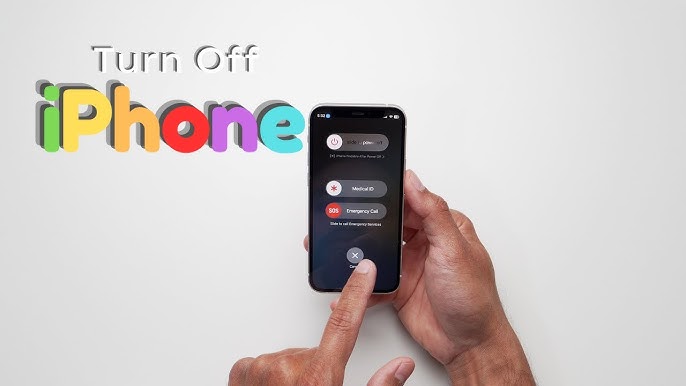
For Face ID-equipped iPhones, press and hold the side button along with either volume button until the power slider appears. This is one of the fastest methods to shut down.
Ensuring Proper Button Press
Both buttons should be held simultaneously, not one after the other. This prevents accidental screenshots and ensures the power-off option appears correctly.
Completing the Power Off
Once the slider is on-screen, swipe it to the right to turn off your iPhone completely. Wait a few seconds before pressing the side button again to restart.
Using Settings Menu for Shutdown
- Open the Settings app and navigate to General
- Scroll down to find the Shut Down option at the bottom
- Swipe the power slider to complete the process
When to Use This Method
This method is ideal when hardware buttons are damaged or unresponsive. It also ensures you avoid any accidental emergency calls triggered by button presses.
Advantages of the Settings Method
No physical button use means less wear and tear on your device’s hardware, making it perfect for long-term iPhone maintenance.
Using AssistiveTouch Feature
Enabling AssistiveTouch
Go to Settings > Accessibility > Touch > AssistiveTouch and toggle it on. A floating menu button will appear on your screen.
Accessing the Power Slider
Tap the AssistiveTouch icon, go to Device, and hold down the Lock Screen option until the power slider appears.
Best Situations for This Option
This is useful for users with limited physical mobility or when side buttons are not functioning properly. It also offers quick access without complicated gestures.
Using Siri to Shut Down iPhone
- Activate Siri using “Hey Siri” or by pressing the side button
- Say “Turn off my iPhone”
- Confirm your choice when prompted
Hands-Free Convenience
This method is beneficial when you cannot physically press buttons, offering a completely voice-controlled shutdown option.
Limitations of Siri Shutdown
Siri shutdown requires voice access and an internet connection, meaning it may not work in offline situations.
When to Use Each Shutdown Method
For Quick Access
The side button and volume combination works best for fast, frequent shutdowns.
For Hardware Issues
Settings and AssistiveTouch options are ideal when buttons fail or wear out over time.
For Accessibility Needs
Siri and AssistiveTouch provide inclusive ways for all users to manage power functions easily.
Restarting After Shutdown
Manual Restart
Press and hold the side button until the Apple logo appears to restart the iPhone manually.
Charging Activation
Plug your iPhone into a charger, and it will power on automatically.
Post-Restart Checks
After restarting, ensure all apps and settings function normally to confirm a smooth reboot.
Read more: The New York (JFK) American Express Centurion Lounge – Location, Hours, Amenities, and More
FAQs
Does turning off my iPhone save battery?
Yes, it stops all background processes, conserving battery until you restart.
An I turn off my iPhone without using buttons?
Yes, you can use the Settings app, AssistiveTouch, or Siri.
Will turning off my iPhone delete data?
No, a shutdown does not affect your stored data or settings.
Can Siri turn off my iPhone without confirmation?
No, for security reasons, Siri always requires user confirmation.
Does shutting down help with performance issues?
Yes, it can clear temporary files and refresh system memory.
Conclusion
Knowing the four simple methods to power off your iPhone gives you complete control over your device’s operation. Whether you rely on button combinations, on-screen options, or voice commands, each approach has specific advantages for different scenarios. This flexibility ensures you can shut down safely whether your buttons are functional, your hands are busy, or you prefer a hands-free method. By understanding and applying these techniques, you ensure your iPhone remains accessible, efficient, and ready for any situation.
