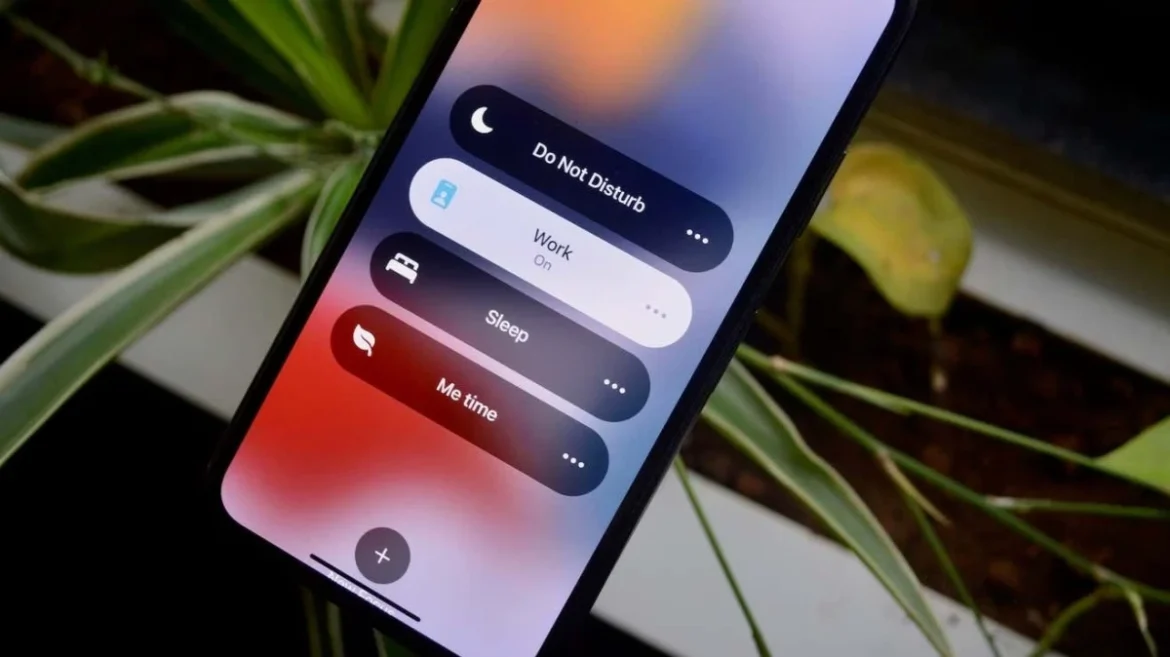
Apple has always been known for creating features that not only enhance user experience but also make life easier in the digital world. One of the most practical additions to iOS is Focus Mode, which was first introduced in iOS 15. Focus Mode is essentially an upgrade to the classic Do Not Disturb feature, but instead of just silencing notifications, it allows you to personalize how and when alerts appear depending on your situation.
Whether you are working, studying, relaxing, driving, or sleeping, Focus Mode helps you minimize distractions and take control of your time. Within this powerful feature lies a small but impactful option called Focus Status. Sharing your Focus Status lets others know you have notifications silenced, so they won’t expect an immediate reply. It is a polite way to communicate your availability without actually saying anything.
In this guide, we will explore Focus Status in detail, understand why it is useful, learn how to enable it, and discover different ways to customize it. We will also look at practical scenarios, advanced settings, and answer frequently asked questions so that you can make the most of this feature.
Understanding Focus Status
When you turn on a Focus mode such as Do Not Disturb, Work, or Sleep, your iPhone can automatically share your status with compatible apps, primarily Apple’s Messages app. The other person will see a note such as “Notifications are silenced.” This does not reveal exactly which Focus you are in; it simply indicates that you might not respond right away.
For example, if a friend sends you a message while you are in Work Focus, they will see a small notice under your name letting them know that notifications are silenced. They still have the option to notify you immediately if the matter is urgent, but otherwise, they are encouraged to wait until you are available.
This small feature reduces misunderstandings, avoids frustration, and helps set clear boundaries. Instead of someone thinking you are ignoring them, they understand that you are temporarily unavailable.
Why Sharing Your Focus Status Matters
At first glance, Focus Status may seem like an unnecessary detail. However, in today’s world of constant connectivity, it carries significant value.
- Promotes clear communication – Instead of leaving people wondering why you are not responding, they get a clear signal that you are busy or resting.
- Reduces unnecessary interruptions – Many people won’t attempt to disturb you once they see your notifications are silenced, which helps you stay in control of your time.
- Encourages healthier digital habits – Sharing your Focus status makes it easier to enforce boundaries, whether during work hours or personal downtime.
- Improves relationships – By politely signaling your availability, you reduce the chances of misunderstandings with friends, family, or colleagues.
- Supports productivity – Less pressure to check messages immediately means you can focus on tasks without feeling guilty about delayed responses.
How to Share Your Focus Status on iPhone
Turning on Focus Status is simple. Follow these steps:
- Open the Settings app on your iPhone.
- Scroll down and tap Focus.
- Choose the specific Focus mode you want to edit, such as Do Not Disturb, Work, or Sleep.
- Tap Focus Status.
- Toggle on Share Focus Status.
Once enabled, apps that support the feature, like Messages, will automatically show your Focus status when you are in that mode.
Controlling Who Sees Your Focus Status
You may not want everyone to know when your notifications are silenced. Luckily, Apple gives you control over this. In the Messages app, you can manage which contacts can see your Focus status.
- Open Messages.
- Select the conversation with the person.
- Tap their name or contact photo at the top of the screen.
- Toggle Share Focus Status on or off.
This way, you can choose to share your status with family and close friends while keeping it private from others.
Practical Examples of Using Focus Status
To understand how useful Focus Status can be, let’s look at a few real-life scenarios:
- During Work Hours – You are deep into a project and don’t want personal notifications disturbing your concentration. By enabling Work Focus and sharing your status, coworkers or friends will know you are occupied.
- While Driving – Road safety is crucial. With Driving Focus, anyone trying to reach you will see that you are unavailable, reducing the temptation to check your phone while driving.
- At Night – When Sleep Focus is on, late-night messages won’t wake you up, but others will see that you have notifications silenced.
- Family Time – Personal or custom Focus modes can help you set boundaries so you can spend uninterrupted time with loved ones.
Customizing Focus Status for Different Modes
One of the best parts of Focus Mode is the ability to create and customize different profiles. Each of these can have Focus Status turned on or off independently. For example, you might want your Work Focus to share your status, but not your Fitness Focus.
Here’s how you can customize it:
- Go to Settings > Focus.
- Select the Focus mode.
- Adjust allowed notifications, app restrictions, and whether you want to share your Focus Status.
This flexibility makes Focus highly adaptable to your lifestyle.
Read More: The Truth About Using Baking Soda and Vinegar for Cleaning
Focus Status Across Apple Devices
Another advantage is that Focus syncs across all your Apple devices logged in with the same Apple ID. This means if you enable Work Focus on your iPhone, the status will also apply to your iPad, Mac, and even Apple Watch. As a result, people contacting you through Messages on any device will see your Focus Status consistently.
Can Others Bypass Focus Status?
Yes. Even if you share your Focus Status, the person trying to contact you can choose the option to Notify Anyway if the matter is urgent. This ensures that emergencies or time-sensitive messages still reach you.
Apple designed this balance carefully—Focus gives you control but doesn’t completely block important communication.
How Focus Status Differs From Do Not Disturb
Before iOS 15, users relied mainly on Do Not Disturb. The difference now is that Focus provides multiple profiles, advanced customization, and the ability to share your status with others. Do Not Disturb was a blanket setting, while Focus offers more flexibility and context.
Common Issues and Fixes
Sometimes users report that their Focus Status is not showing up correctly in Messages. Here are a few quick fixes:
- Ensure you are running the latest iOS version.
- Double-check that Share Focus Status is enabled in both Settings and Messages.
- Restart your device to refresh settings.
- Verify that your contacts are using compatible apps like iMessage.
FAQ’s
Does sharing my Focus Status reveal which Focus mode I am in?
No, it only shows that notifications are silenced. It won’t say whether you’re working, sleeping, or driving.
Can I stop specific people from seeing my Focus Status?
Yes. In the Messages app, you can control this on a per-contact basis.
Will Focus Status work with third-party apps?
Currently, it works mainly with Apple’s own apps like Messages, but some third-party apps may also support it if developers integrate it.
What happens if someone presses “Notify Anyway”?
You’ll receive the message as a notification, bypassing your Focus restrictions.
Does Focus Status drain battery life?
No, it is a lightweight feature and doesn’t significantly affect battery usage.
Tips for Making the Most of Focus Status
- Create custom Focus modes for different parts of your life, such as Study, Family, or Fitness.
- Use automation to turn on Focus automatically based on time, location, or app usage.
- Combine Focus with Home Screen customization to hide distracting apps.
- Communicate with your contacts so they know when to expect slower replies.
- Periodically review and update your Focus settings to match your lifestyle.
Conclusion
Sharing your Focus Status on iPhone might feel like a small detail, but it plays a huge role in digital communication. It politely informs others of your availability, sets boundaries, and helps you focus without guilt. In a world where constant notifications compete for our attention, tools like Focus Status empower us to take control of our time.
If you haven’t explored Focus yet, this is the perfect time to start. Customize it to your daily routines, enable Focus Status where it makes sense, and enjoy the balance between staying connected and protecting your peace of mind.
